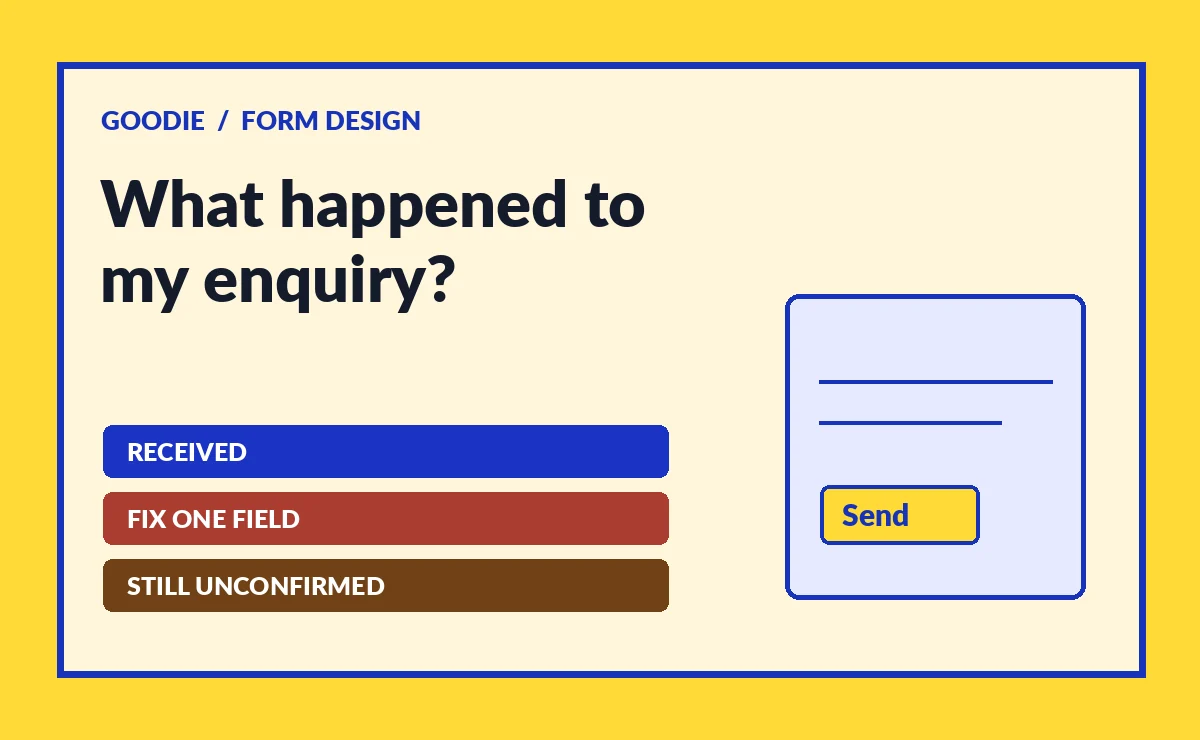
Write the message that appears after a form submission while you are designing the form. The visitor needs to know whether their request reached you, what you will do with it and what they can do while they wait. Each answer depends on what the website can actually confirm.
Give the confirmation a job
Imagine a small joinery business with a quote form. The form saves the enquiry to a list that someone checks on weekdays. It also sends an optional email receipt. “Thanks for reaching out” sounds friendly, but leaves the visitor to guess whether a quote is on its way. A more useful example is: “We received your quote request. We’ll review your measurements and contact you if we need anything else.” If the team has a reliable reply window, add it here.
Ask what event the system uses to display “received”. A saved request supports that message. A visitor who only clicked the button should still see a sending state. If the request was saved and the receipt email failed, the confirmation can say that the enquiry is on file and provide a reference if the system has one. The receipt has its own status.
Write three outcomes
- Saved. “Quote request received. Your reference is Q-104.” Use a reference only when the system can find the request by that value.
- Needs a correction. “Add an email address we can reply to.” Put the message beside the email field and keep the measurements the visitor already entered.
- Unconfirmed. “We couldn’t confirm that your request arrived. Your details are still here.” Give the visitor a way to retry safely or use a listed contact route if the site supports it.
Those messages solve different problems. The first describes a receipt, the second shows how to fix an input and the third leaves room for a request that arrived just before a connection dropped. If your system might accept two copies on retry, give the visitor an alternative or make duplicate submission handling part of the form design.
Put the result where it can be found
When the form opens a new page, a clear heading can identify the outcome. If it stays on the same page, place overall feedback where a visitor can discover it after pressing Send. Provide field-specific feedback next to the affected entry. The W3C forms tutorial covers both kinds of notification and explains why people need feedback for successful submissions as well as errors. W3C WAI guidance on form notifications.
Before launch, take the form through success, an incorrect email address and a failed connection. Use the keyboard and check the narrow layout. Read the message alongside the actual admin record. If the two tell different stories, change the message or repair the underlying flow before adding a reassuring promise.